EvidenSend for Android · illustrated help
Set it up once.
Keep SEND within reach.
Follow the app’s guided setup, put the SEND widget where you can see it, and make one harmless test before you rely on delivery. The pictures show the Android app and launcher on a test emulator; menus may look different on your phone.
01 · Prepare
Set up delivery before you use SEND
Recording can work locally without delivery. Sending to people or cloud storage requires Premium, a completed setup and a working connection. During internal testing, use the Google account invited to the Play test.
- STEP 1
Open guided setup
Open EvidenSend and allow camera and microphone access. In Settings, tap Start guided setup. The four steps take you through storage, recipients, email and a test. To test Premium without a charge, tap Get Premium 9.99 € in the app. This opens the Google Play purchase sheet; tapping the button alone does not confirm a purchase. Check the payment method there. Continue only if you see Test card, always approves or an equivalent test payment method and Play identifies it as a test purchase. If only a real payment method appears, cancel in the purchase sheet and ask Pellabs to check the Play account you used.
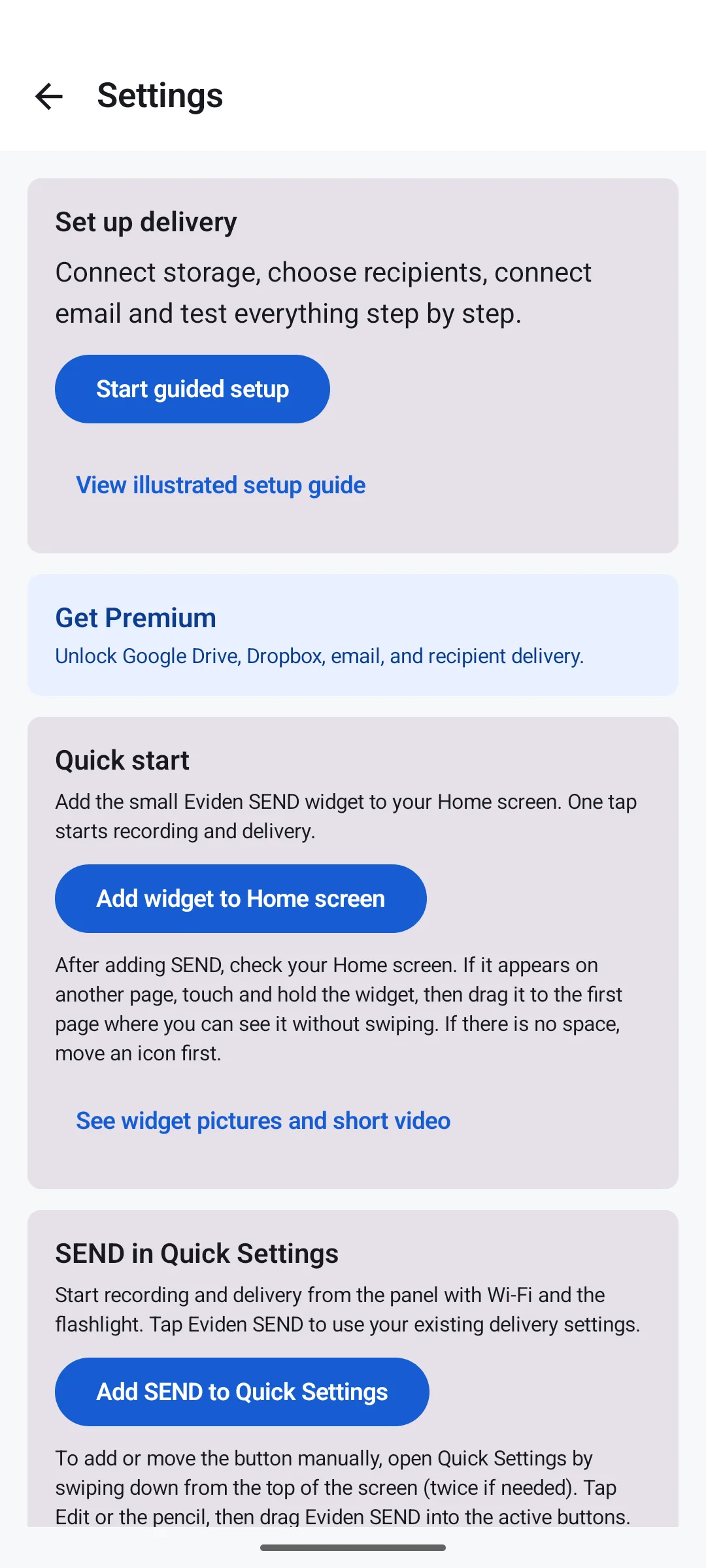
Example Android settings on a test emulator. No account is connected in this picture. - STEP 2
Choose the delivery route
For viewing links, connect Google Drive or Dropbox to store clips, then connect Gmail or another email account to send the links. Gmail and Drive are separate connections. You can instead choose email attachments without cloud storage. The app also allows attachments alongside cloud upload in its email settings.
Google may ask you to select an account and approve the requested access. See the Drive steps and Gmail permission steps below before running the setup test. Do not enter your Google password into EvidenSend.
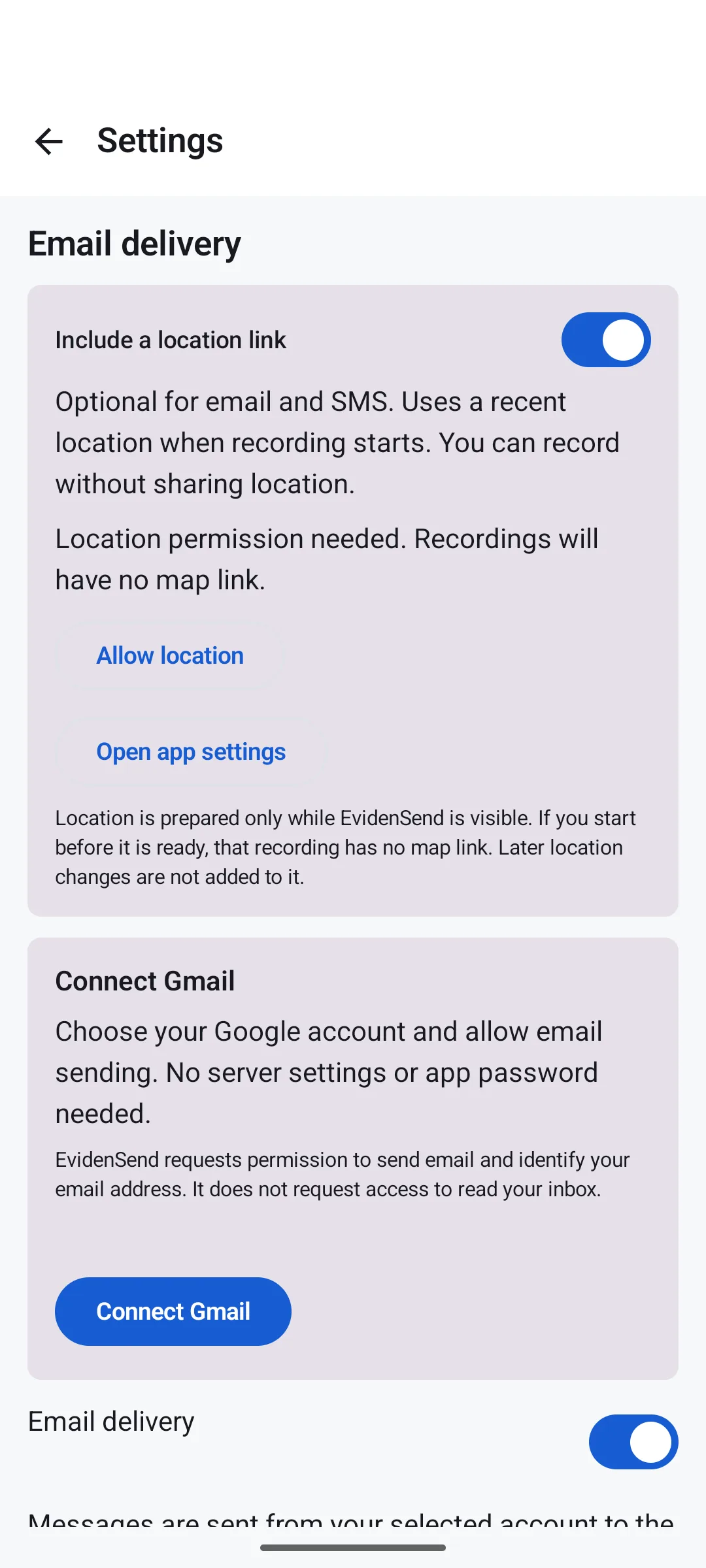
The app’s Gmail connection button. Google’s own permission screen can change. - STEP 3
Save the addresses
Enter one recipient email address at a time and tap Add and save email, or use the keyboard’s Done action. Check that each address appears in the saved list. Put your own address in My email if you want to use Only to me. Review the list before starting a real recording.
For a location link, turn on Include a location link, grant location permission and wait for Recent location ready. A recording started before a recent position is ready may have no map link.
- STEP 4
Run the setup test
Use an address you control. The setup test sends a small test item only to that address; it is not a video-recording test. Check your inbox and spam folder, then open the file or link. Afterwards make a short, harmless Record & Send test and check the actual video in Recordings and at your destination.
Google Drive · video storage
Connect Drive for viewing links
- In Start guided setup, choose Google Drive as the storage route. If it is not connected, select the Google account you want to use and review Google’s Drive access request.
- Approve the requested access on Google’s screen and return to EvidenSend. Check that Drive shows as connected and upload is enabled.
- In the email step, connect Gmail separately to send the viewing links. Drive connection alone does not send email.
- Send a setup test to your own address. After a short recording, check that the video uploaded and that the email link opens it.
Want both a link and an attachment? Choose Drive for storage, then enable the additional video-attachment option in email settings. Email attachments only chooses the route without cloud upload.

Link or attachment? Drive or Dropbox holds a video and email can send a viewing link. An email attachment puts the video file in the message. Large attachments can exceed your mail provider’s limit. Confirm what arrived in your own test.
02 · Quick access
Put SEND on the first Home screen page
The Android launcher chooses where a newly added widget appears. Check your Home screen after adding it. On some phones, SEND lands on another page even though the app requested it successfully.
- STEP 1
Ask the app to add SEND
In EvidenSend, open Settings → Quick start and tap Add widget to Home screen. If your phone cannot show the prompt, touch and hold an empty part of the Home screen, open Widgets and choose EvidenSend manually.
- STEP 2
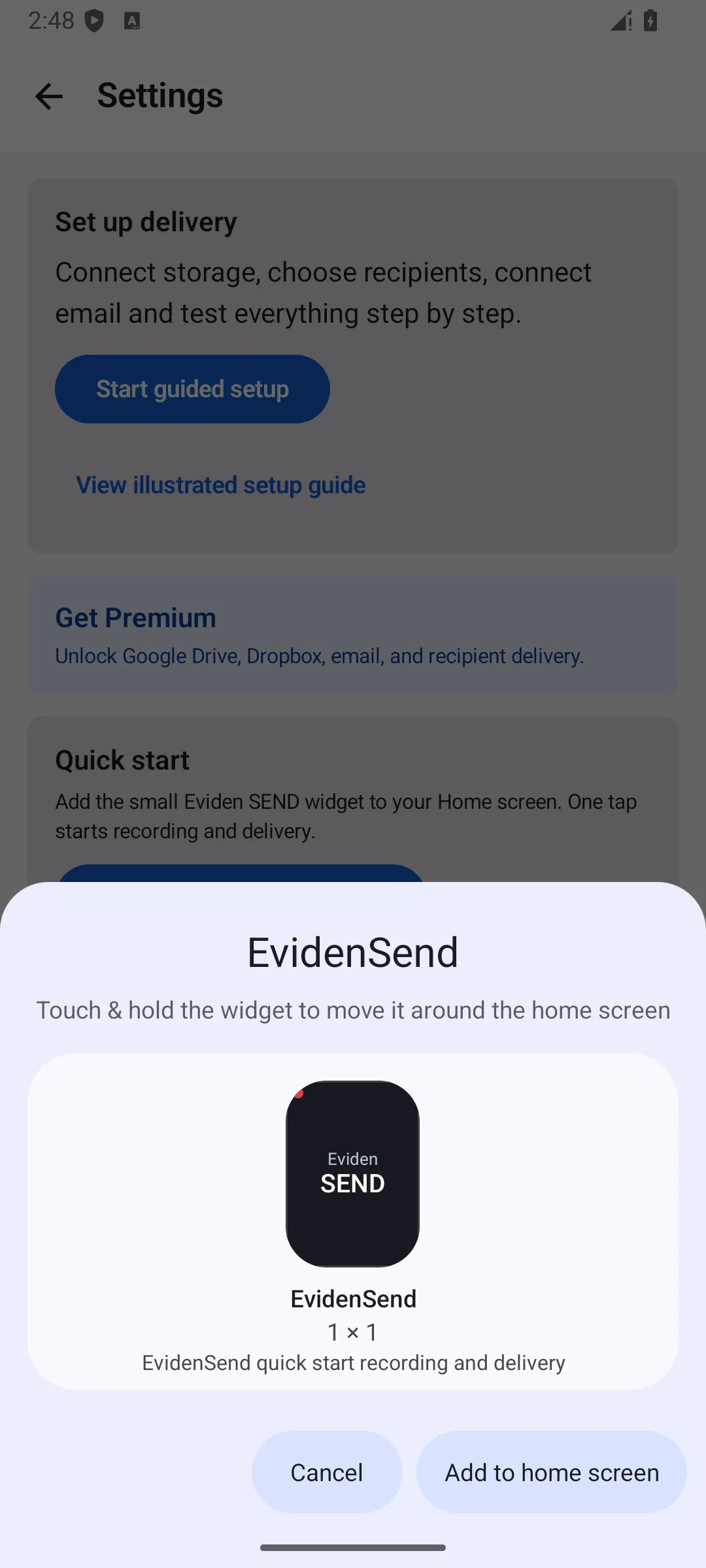
Confirm Android’s prompt
Select Add to home screen. Adding the widget does not start recording. On another phone, the prompt or widget picker may look different.
- STEP 3
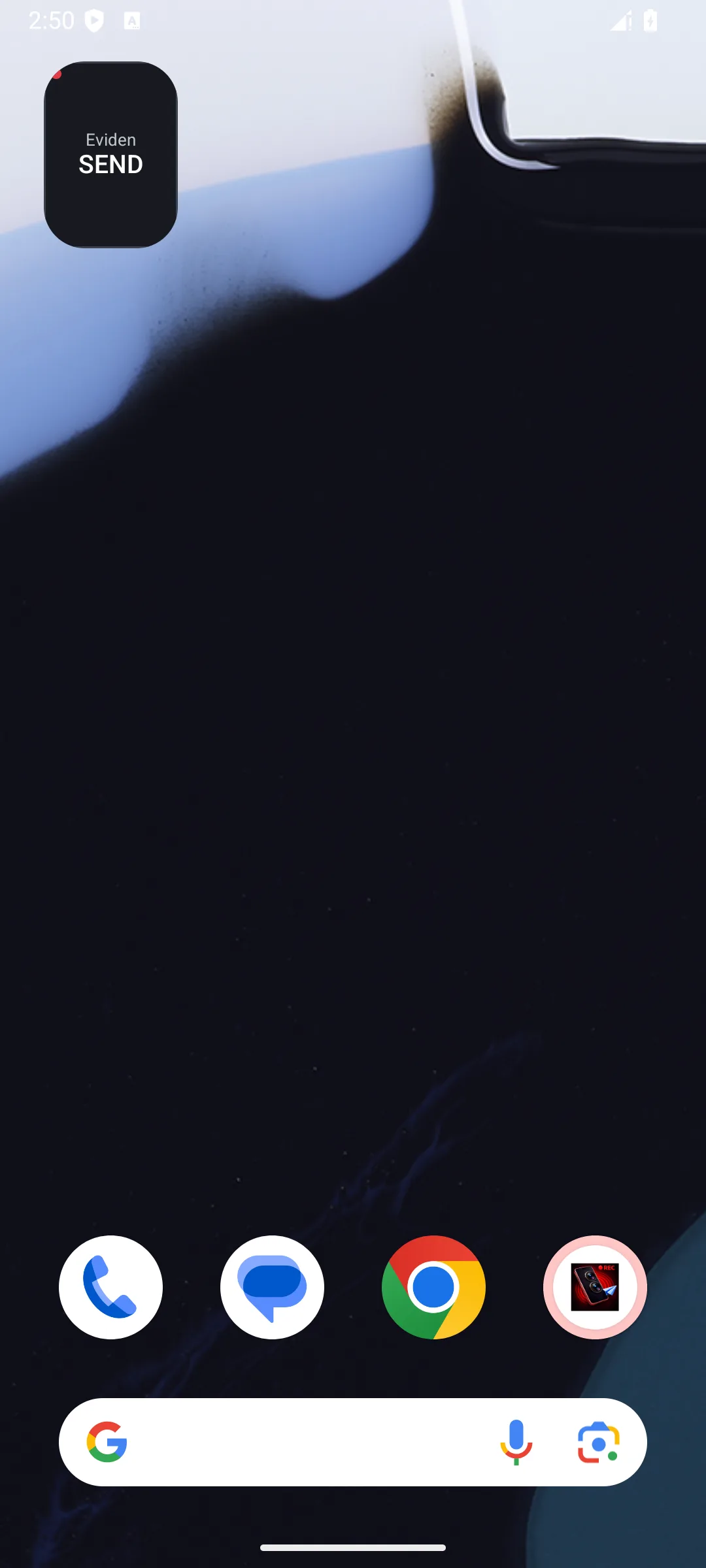
Find where it appeared
Return to the Home screen. If you do not see SEND, swipe to the next Home screen page. This example shows the widget on the second page. If the phone says there is no space, move an icon or choose a less crowded page first.
- STEP 4
Move it within reach
Touch and hold SEND until it lifts. Keep your finger on it, drag it to the page edge, wait for the first page to appear, then release it in a free space. Confirm you can see SEND immediately when you open the Home screen, without swiping.
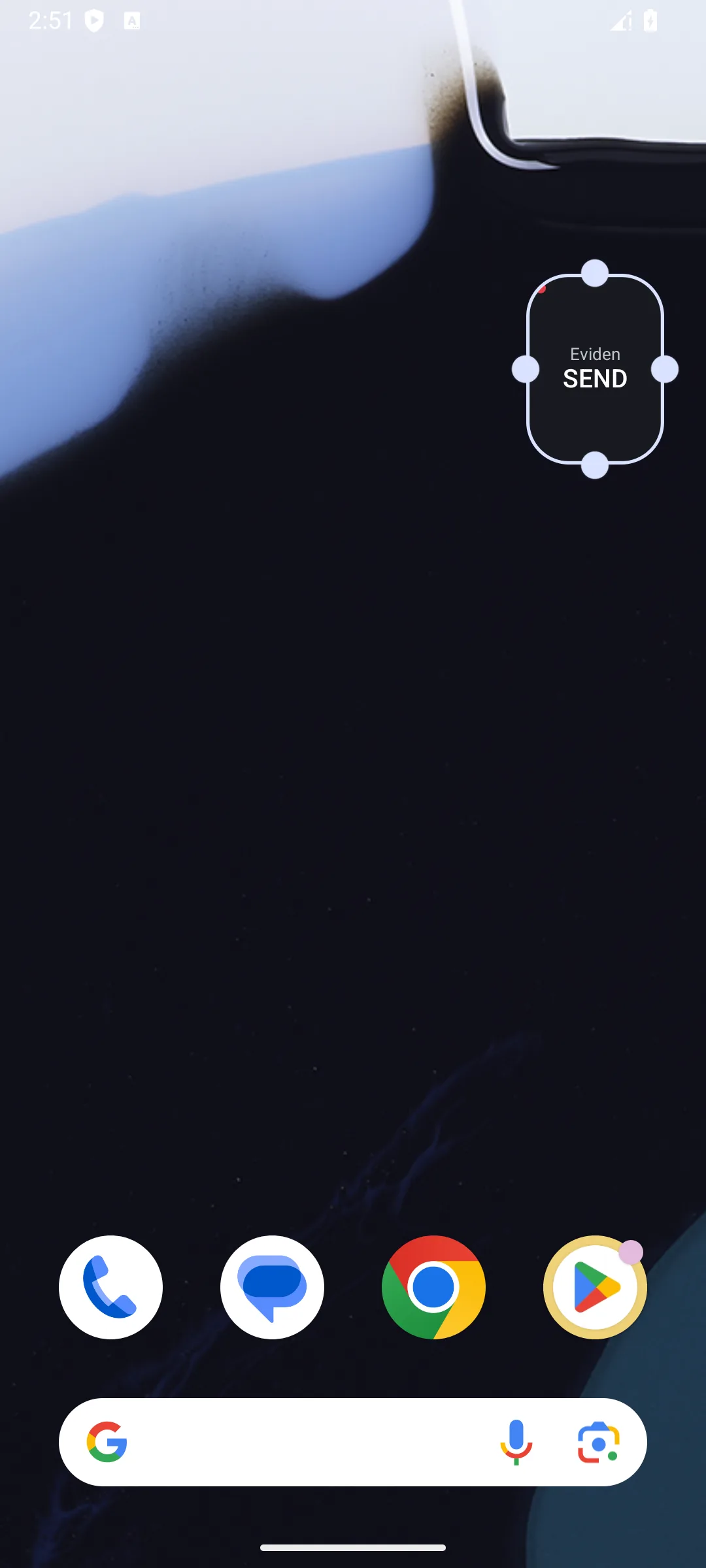
Do not tap SEND briefly during placement: a normal tap starts its recording flow.
Watch the 24-second walkthrough
This silent walkthrough uses actual Android test-emulator screens. It shows the app button, Android’s add prompt, the widget on another page and the move action. The numbered instructions above contain the same steps.
- Open Settings → Quick start.
- Confirm Add to home screen.
- Look on the other Home screen pages.
- Hold SEND and move it to the first page.
03 · Check
Make one safe test
- Check the saved recipients and send a harmless recording to an address you control. The widget starts the same Record & Send flow as the button in the app.
- On the recording screen, Only to me appears for five seconds after recording starts. It uses your saved My email address; if you want this choice, tap it before the countdown ends. Otherwise the session uses its selected recipients.
- Tap Stop to finish. A short recording can still produce a clip. In Recordings, play the clip and review delivery status. Check the received message, its video file or viewing link, and the map link if you enabled location sharing.
Check before relying on the app. Camera availability, launcher behavior, battery restrictions and network delivery vary by phone. EvidenSend is not an emergency-response service and cannot promise that a clip has left the phone before it is lost.
04 · Help
If something does not work
- Widget missing: check every Home screen page and the launcher’s Widgets menu. The lock-screen shortcut picker is different from the Home screen widget picker.
- Gmail connected, no video link: Gmail sends mail; Drive or Dropbox stores the video for a link. Check the chosen storage route and the session status.
- No map link: check the location option, permission and Recent location ready before the next recording.
- Premium button shows 9.99 €: the price also appears during testing. Tap it to see the Play purchase sheet and payment method. Select the test card for a test purchase. If you only see a real payment method, cancel before confirming the purchase and ask Pellabs to check that your exact Play account has licence-tester access.
- Still stuck: contact support@pellabs.fi. Include your phone model, app version, the step that failed and the exact message; do not send private recordings or account passwords.